Verify your installation
After adding the tracking snippet to your website, you should verify that Pageviews is correctly receiving data.
Check the realtime dashboard
- Open your website in a browser tab.
- In another tab, go to your Pageviews dashboard and click Realtime.
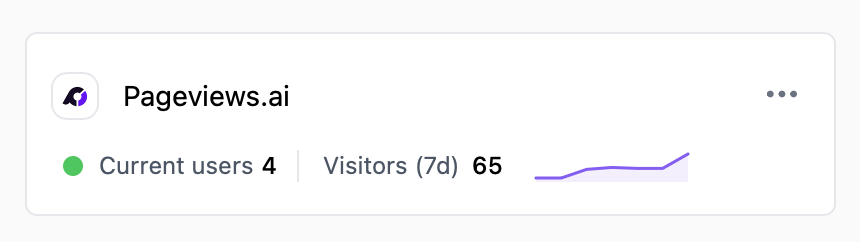
- You should see at least 1 current visitor — that's you!
Troubleshooting
If you don't see any data after a few minutes, check the following:
The snippet is in the <head> section
Make sure the tracking snippet is placed inside the <head> tag of your HTML, not in the <body>. While it may still work in the body, the head is the recommended location.
The site ID is correct
Make sure you copied the tracking snippet from your site settings. The {site_id} in the script URL must match your site — you can verify this on the Site Settings → General page.
Ad blockers
Some browser extensions or ad blockers may block analytics scripts. Try visiting your site in a private/incognito window with extensions disabled.
Caching
If your website uses aggressive caching (CDN, server-side cache, or a caching plugin), the old version of your pages without the snippet may still be served. Try clearing your cache or waiting for it to expire.
Check the browser console
Open your browser's developer tools (F12) and check the Network tab. Search for the Pageviews script file. If it loads with a 200 status code, the installation is working correctly.