Email reports
Email reports let you receive periodic summaries of your site's analytics directly in your inbox. Set them up once and stay informed without needing to log in to the dashboard.
Setting up email reports
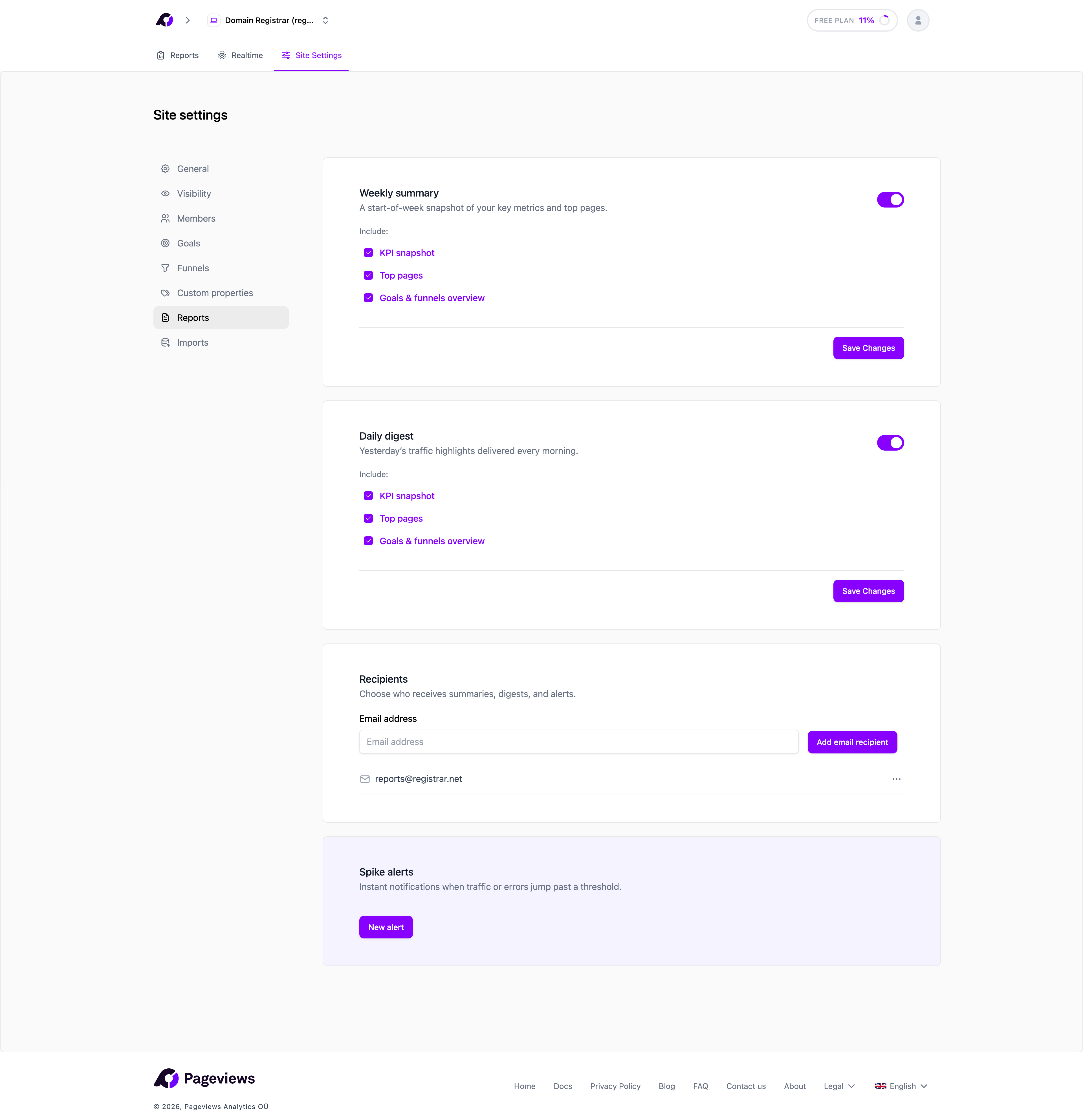
- Go to Site Settings → Reports.
- Click Enable Email Reports.
- Select the frequency: daily or weekly.
- Add recipients — enter the email addresses of people who should receive the report.
- Click Save.
What's included in the report
Each email report contains a summary of your site's key metrics for the reporting period:
- Unique visitors and total pageviews with comparison to the previous period.
- Top pages — Your most visited pages.
- Top sources — Where your traffic came from.
- Goal conversions — If you have goals set up, their performance is included.
Managing recipients
You can add or remove recipients at any time from the Reports settings page. Recipients don't need to have a Pageviews account — anyone with a valid email address can receive reports.
Disabling reports
To stop sending email reports, go to the Reports settings page and click Disable Email Reports. You can re-enable them at any time without losing your recipient list.