Spike alerts
Spike alerts notify you by email when your website experiences an unusual change in traffic. This helps you react quickly to viral content, breaking news, or potential issues.
Setting up spike alerts
- Go to Site Settings → Reports.
- Find the Spike Alerts section.
- Click Add Alert.
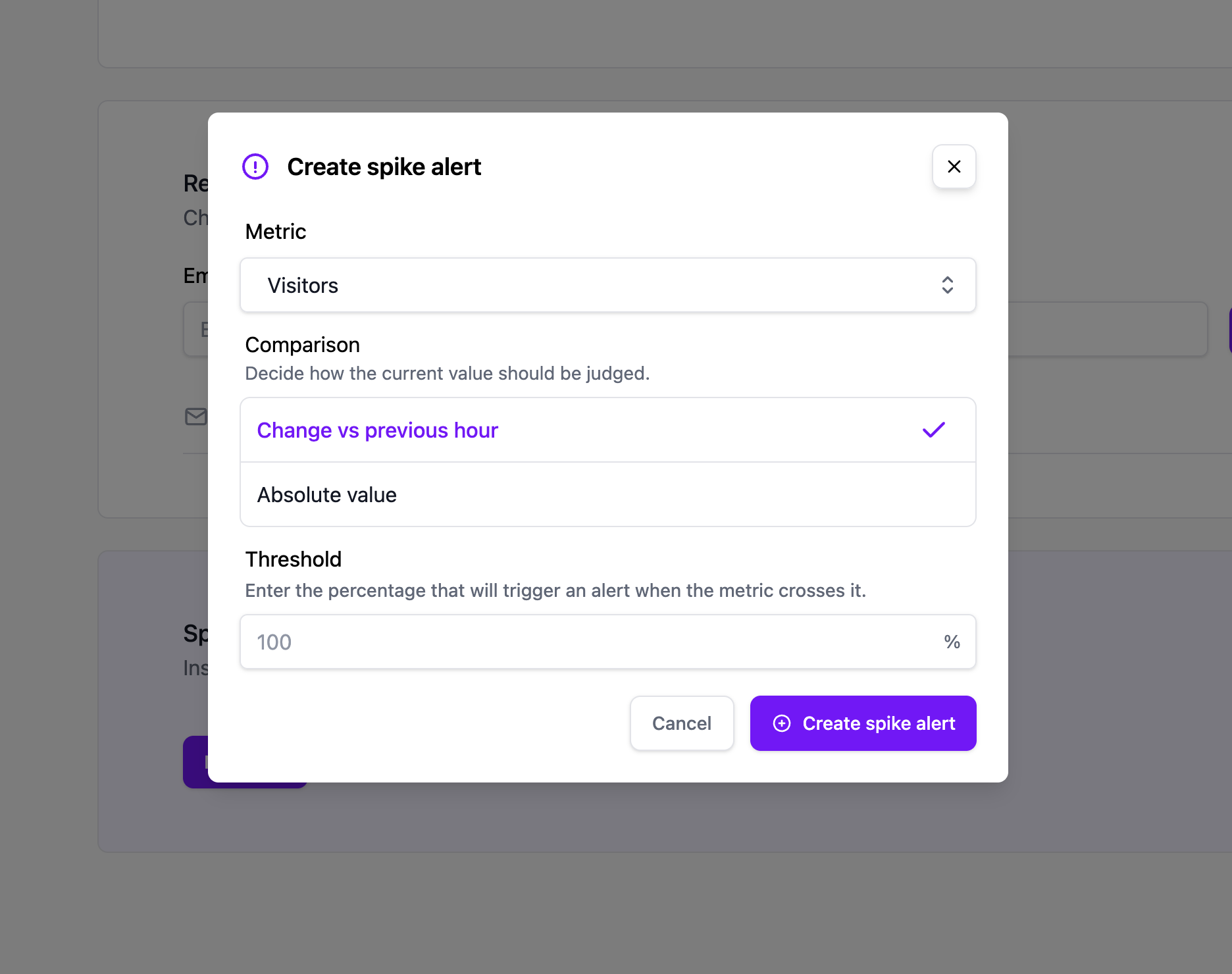
- Configure your alert:
- Metric — Choose whether to monitor visitors or pageviews.
- Alert type — Choose between an absolute threshold (e.g., more than 500 visitors per hour) or a percentage change (e.g., 200% increase compared to the previous hour).
- Threshold value — Set the value that triggers the alert.
- Click Save.
How alerts work
Pageviews checks your traffic metrics periodically. When the metric exceeds your threshold, an email notification is sent to the site owner. The alert includes:
- The metric that triggered the alert.
- The current value vs. the threshold.
- A link to your dashboard to investigate further.
Managing alerts
You can edit or delete existing alerts from the Reports settings page. It's a good idea to start with a higher threshold and adjust downward as you learn your site's normal traffic patterns.
Tips
- Use percentage-based alerts if your traffic varies by time of day — they adapt to your normal patterns.
- Use absolute threshold alerts if you want to know when traffic exceeds a specific number, regardless of normal patterns.
- Combine spike alerts with the Realtime dashboard to investigate traffic spikes as they happen.