Two-factor authentication
Two-factor authentication (2FA) adds an extra layer of security to your Pageviews account. When enabled, you'll need to enter a code from your authenticator app in addition to your password when logging in.
Enable 2FA
- Go to Account Settings → Security.
- Click Enable Two-Factor Authentication.
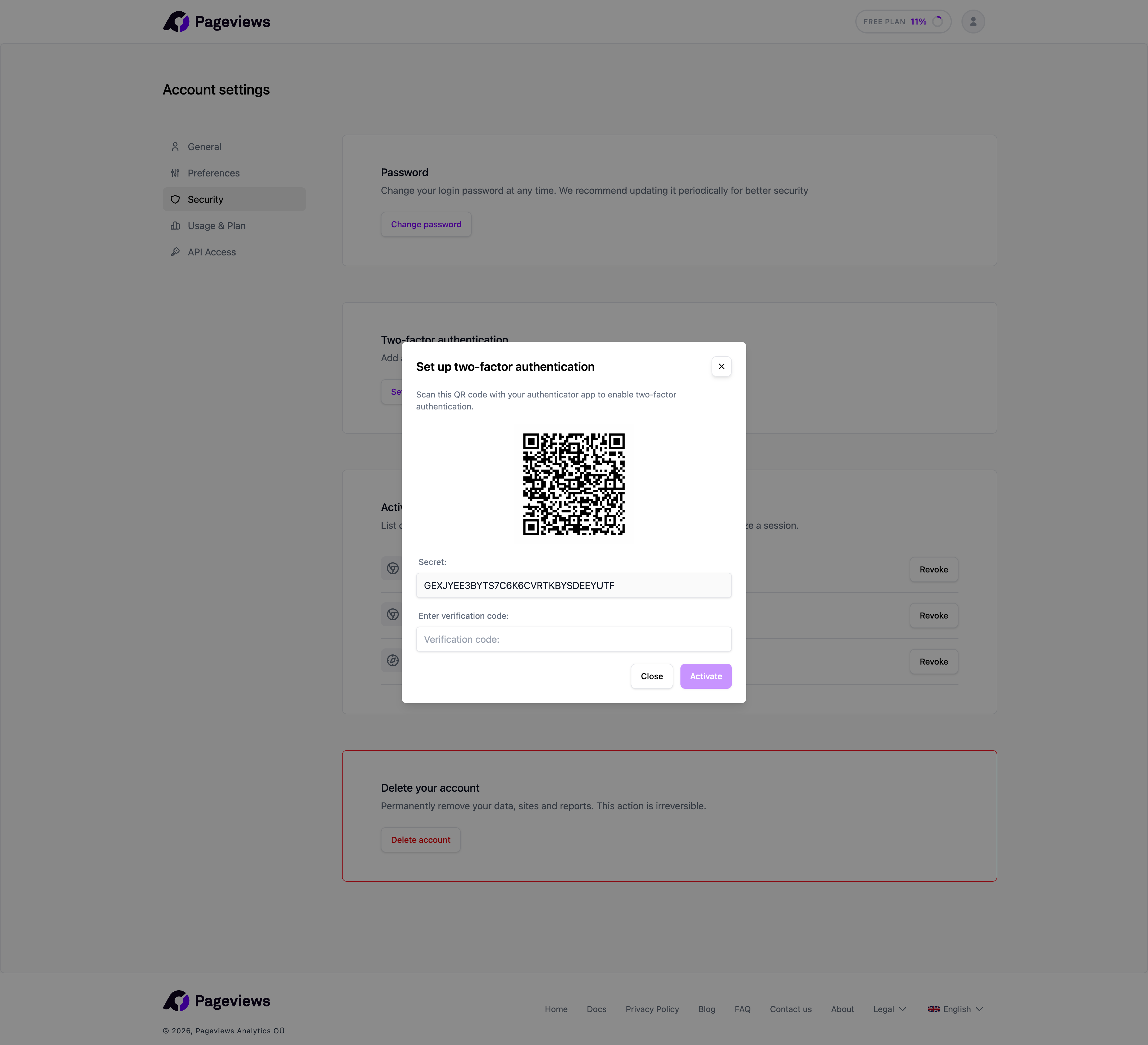
- Scan the QR code with your authenticator app (Google Authenticator, Authy, 1Password, etc.).
- Enter the 6-digit code from your authenticator app to confirm.
- Save your recovery codes in a secure location.
Recovery codes
When you enable 2FA, you'll receive a set of one-time recovery codes. These codes can be used to log in if you lose access to your authenticator app.
- Store them securely — Print them or save them in a password manager.
- Each code can only be used once.
- If you run out of recovery codes, you can generate a new set from the Security settings.
Logging in with 2FA
After entering your email and password, you'll be prompted to enter a 6-digit code from your authenticator app. If you don't have access to your app, click Use recovery code to enter one of your saved codes.
{screenshot: 2FA login prompt}
Disable 2FA
To disable two-factor authentication:
- Go to Account Settings → Security.
- Click Disable Two-Factor Authentication.
- Confirm by entering your password.