Private and shared links
Shared links let you give anyone access to your dashboard without requiring them to create a Pageviews account. This is useful for sharing analytics with clients, stakeholders, or the public.
Creating a shared link
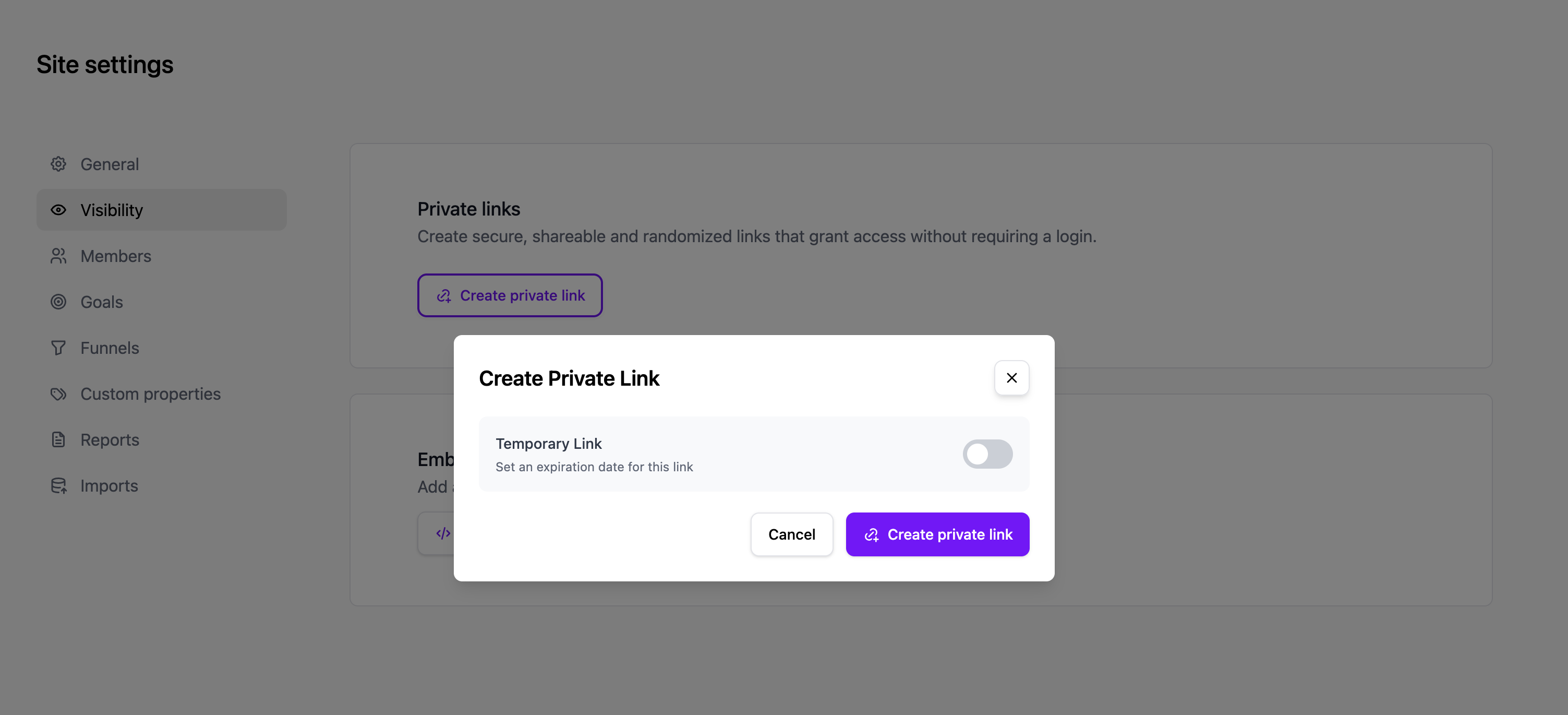
- Go to Site Settings → Visibility.
- Click Create Link.
- Give the link a name to help you remember who it's for (e.g., "Client Dashboard").
- Optionally set an expiration date after which the link will stop working.
- Click Save.
Using shared links
After creating a link, copy the URL and share it with anyone who needs access. They'll be able to view your dashboard without logging in.
Shared link viewers can see all report data but cannot modify any settings.
Managing links
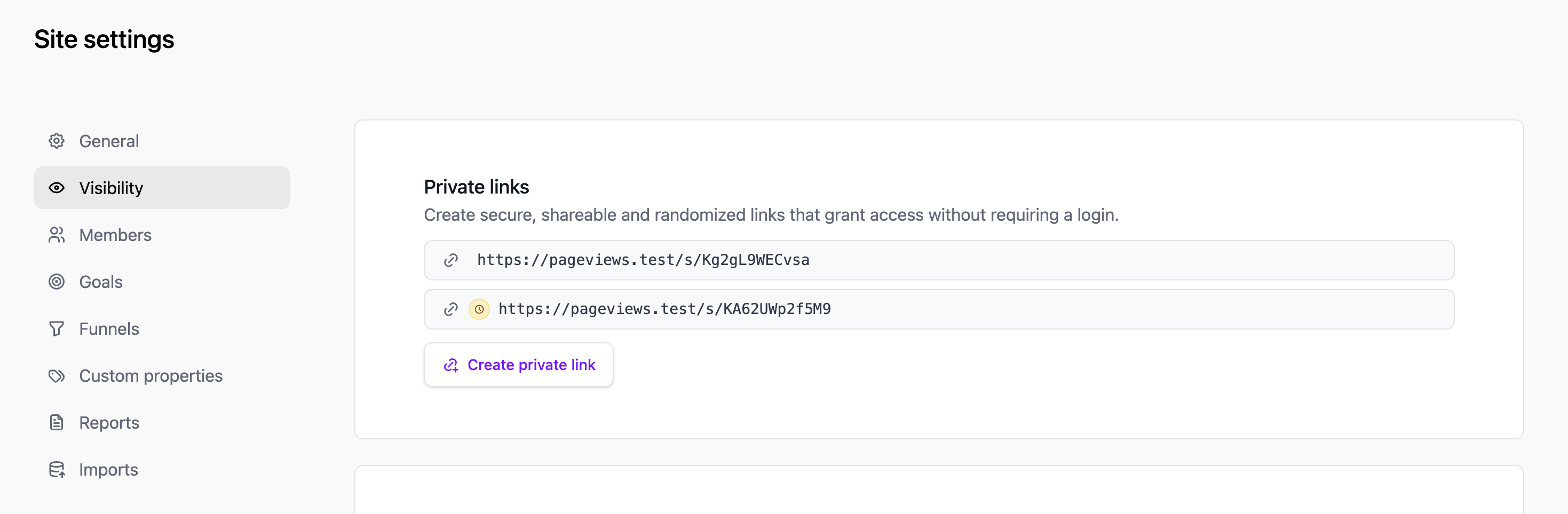
On the Visibility settings page, you can see all your active shared links. For each link, you can:
- Copy the URL to share it.
- Edit the link name or expiration date.
- Revoke the link to immediately disable access.
Security considerations
- Anyone with the link can view your analytics — treat it like a password.
- Use expiration dates for temporary access (e.g., a client project).
- If a link is compromised, revoke it immediately and create a new one.
- Shared links do not grant access to site settings or the ability to modify anything.