Team members and roles
You can invite other people to view or manage your site's analytics. Each team member is assigned a role that determines what they can access.
Inviting members
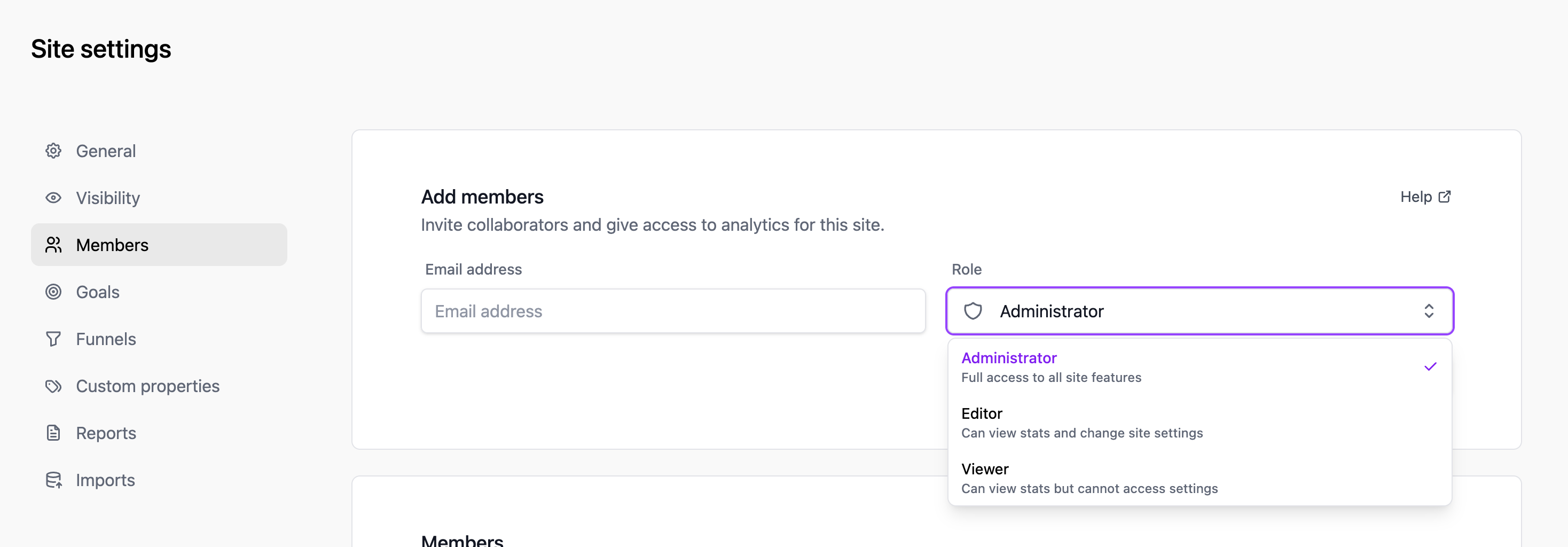
- Go to Site Settings → Members.
- Enter the email address of the person you want to invite.
- Select a role for them.
- Click Send Invitation.
The invited person will receive an email with a link to accept the invitation. If they don't have a Pageviews account yet, they'll be prompted to create one.
Roles
- Owner — Full access to all settings, billing, and data. Can transfer ownership. Each site has exactly one owner.
- Admin — Can manage site settings, goals, funnels, and members. Cannot delete the site or manage billing.
- Viewer — Can view the dashboard and reports but cannot change any settings.
Managing members
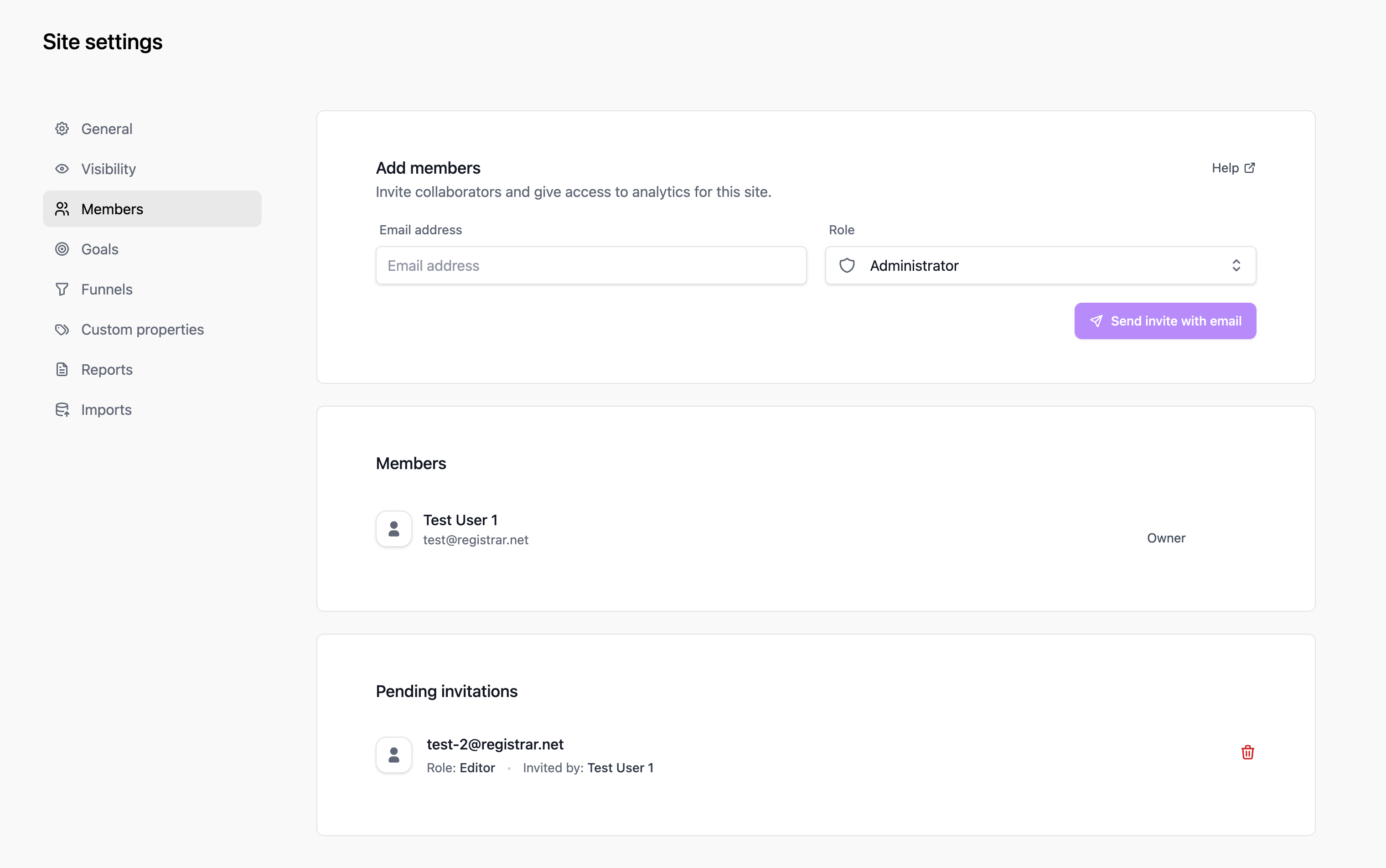
On the Members page, you can see all current members and pending invitations. As an owner or admin, you can:
- Change a member's role by selecting a new role from the dropdown.
- Remove a member by clicking the remove button next to their name.
- Cancel a pending invitation before it's accepted.
Plan limits
The number of team members you can invite depends on your plan:
- Free — Up to 2 members per site.
- Pro — Unlimited team members.
- Enterprise — Unlimited team members.