Filtering and comparison
Pageviews provides powerful filtering and comparison tools that let you dig deeper into your data and answer specific questions about your traffic.
Date range picker
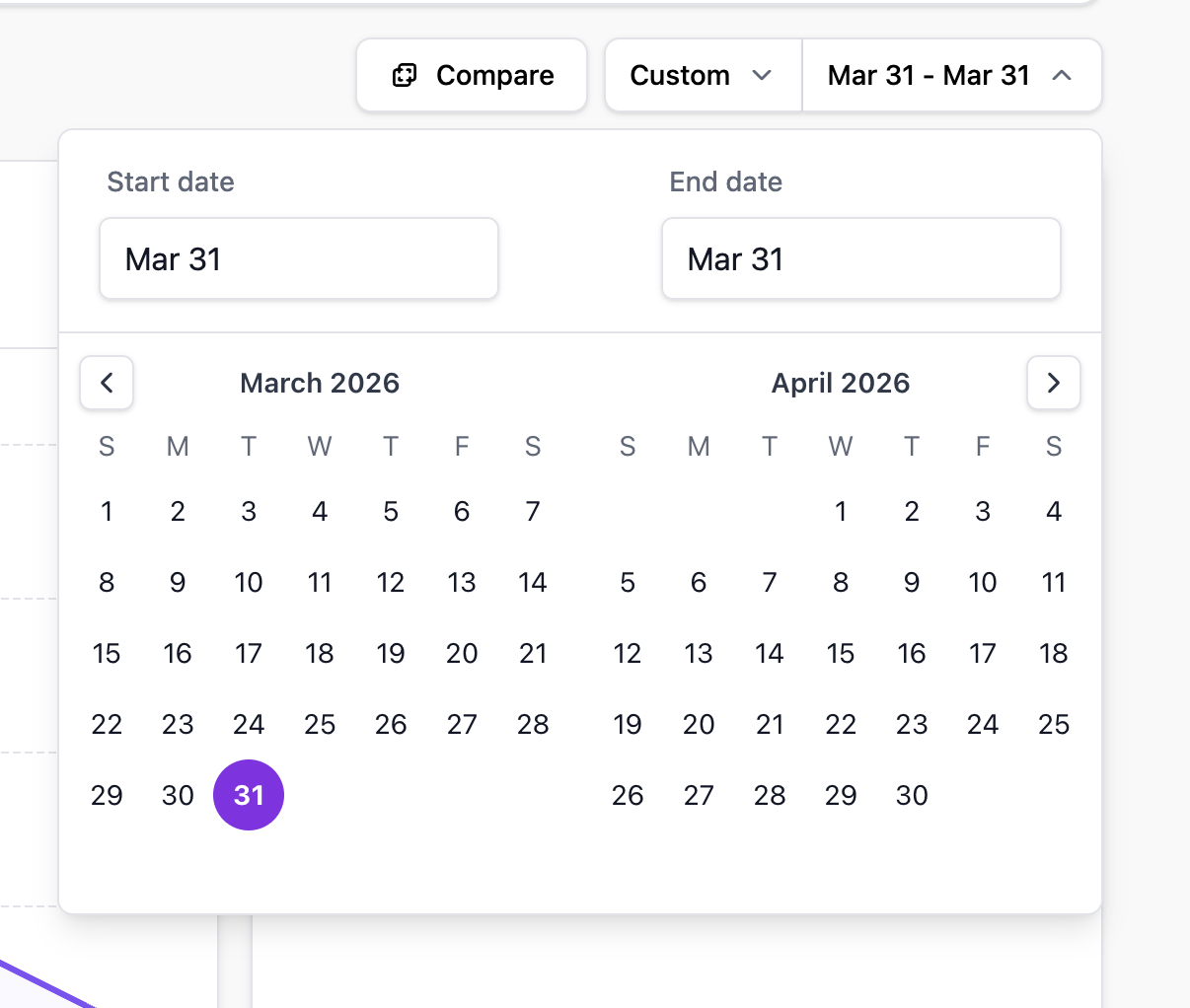
Use the date picker in the top-right corner of your dashboard to change the reporting period. Available presets include:
- Today
- Yesterday
- Last 7 days
- Last 30 days
- This month
- Last month
- Custom range — Select any start and end date.
Comparison mode
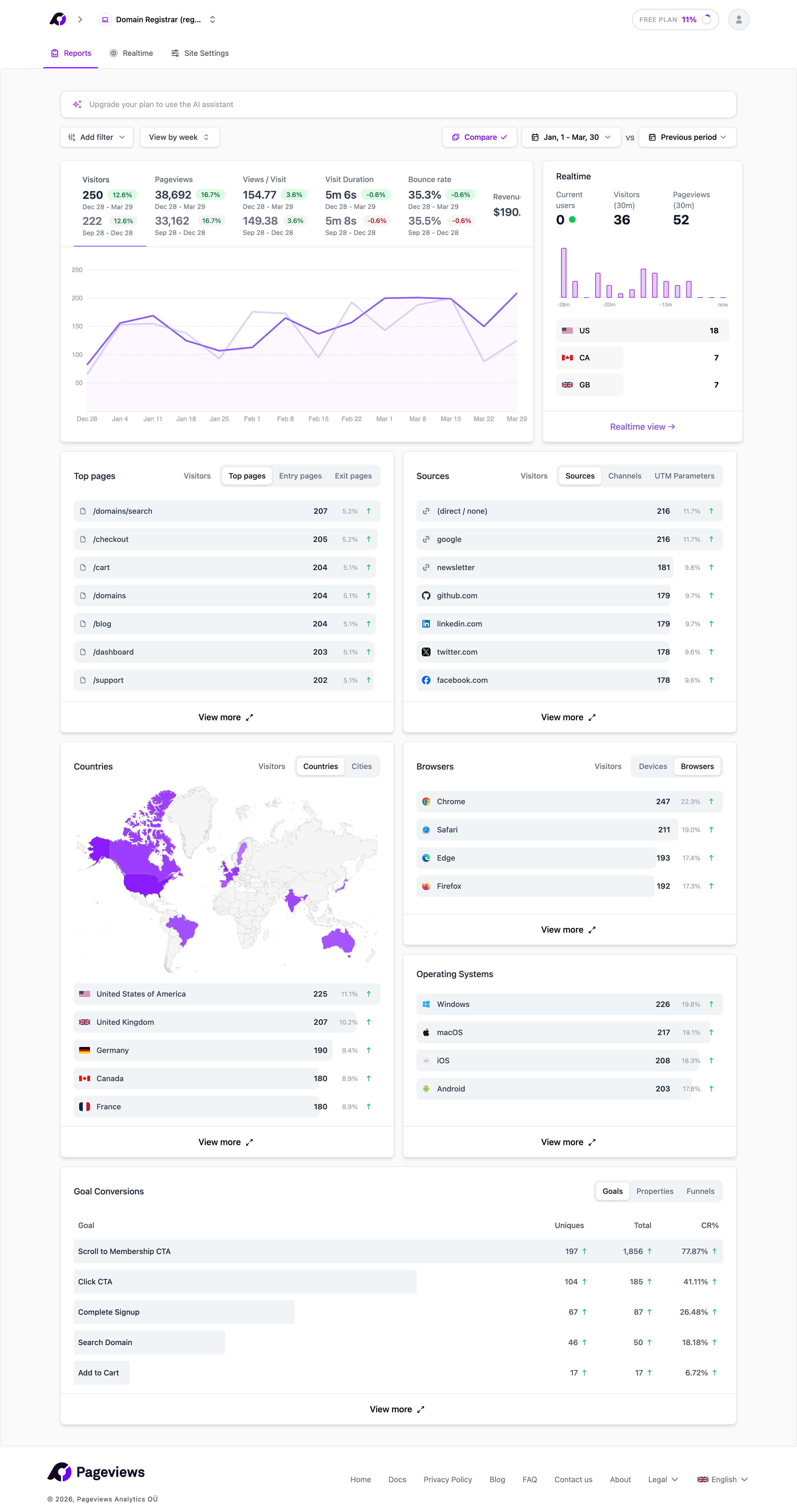
Click the comparison button next to the date picker to enable comparison mode. This overlays the previous period's data on your chart and shows percentage changes (up or down) next to each metric.
For example, if you're viewing "Last 7 days", the comparison will show the 7 days before that. If you're viewing a custom range, the comparison period will be the same number of days immediately preceding your selected range.
Filters
You can filter your dashboard by clicking on any value in your reports. For example:
- Click a page in Top Pages to filter by that page.
- Click a source to filter by that traffic source.
- Click a country to filter by geographic location.
- Click a device, browser, or OS to filter by device characteristics.
Active filters appear as tags at the top of your dashboard. Click the × on any tag to remove it.
Combining filters
You can apply multiple filters at once to narrow your data. For example, filter by "Google" source and "Mobile" device type to see only your mobile traffic from Google.
Advanced filters
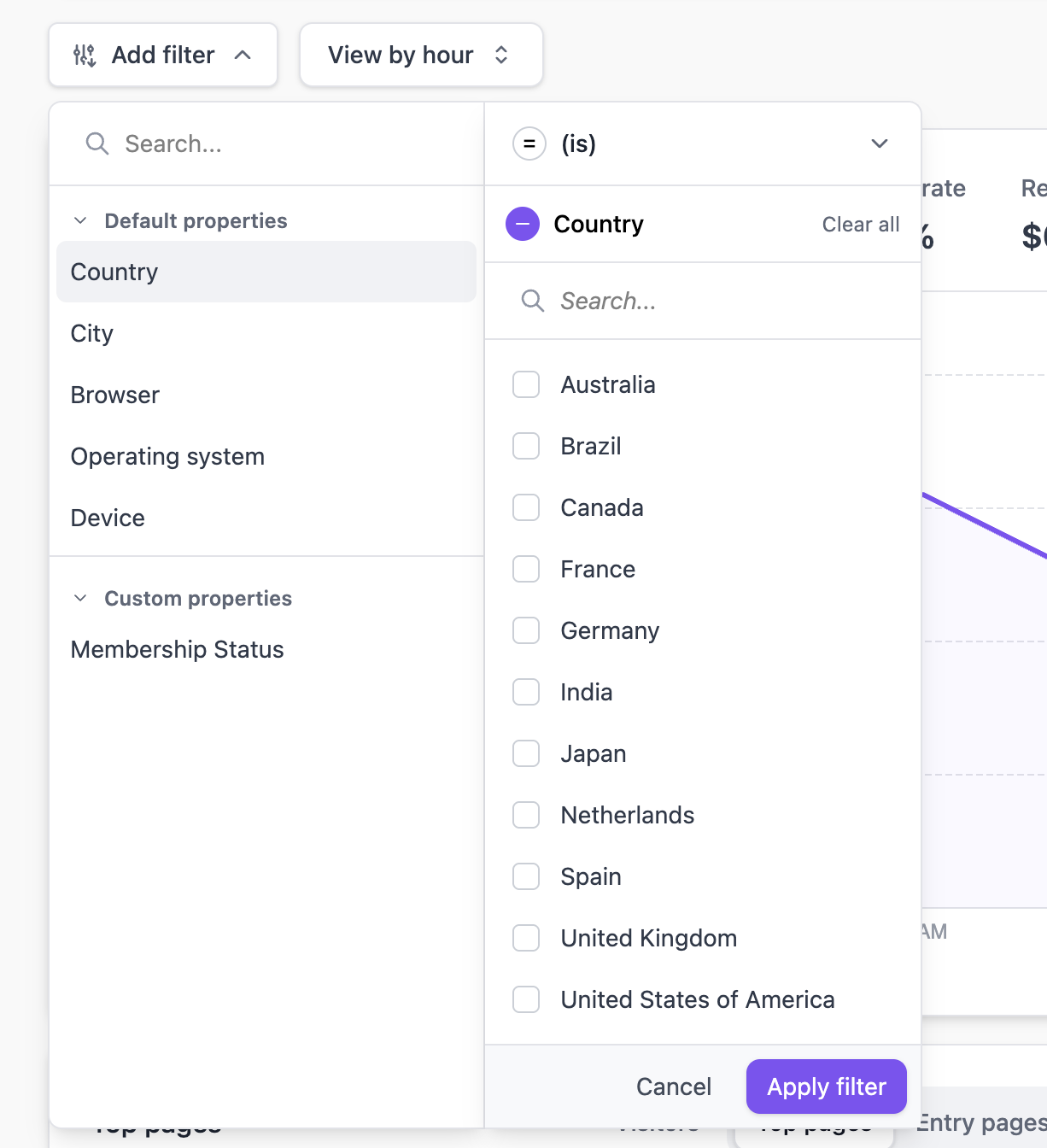
Click the Filter button to access the advanced filter panel. Here you can create filters with different operators:
- is — Exact match.
- is not — Excludes the specified value.
- contains — Partial match (useful for filtering pages by path prefix).