Pageview goals
Pageview goals let you track when visitors reach specific pages on your website. This is useful for measuring conversions like sign-up completions, checkout thank-you pages, or specific content views.
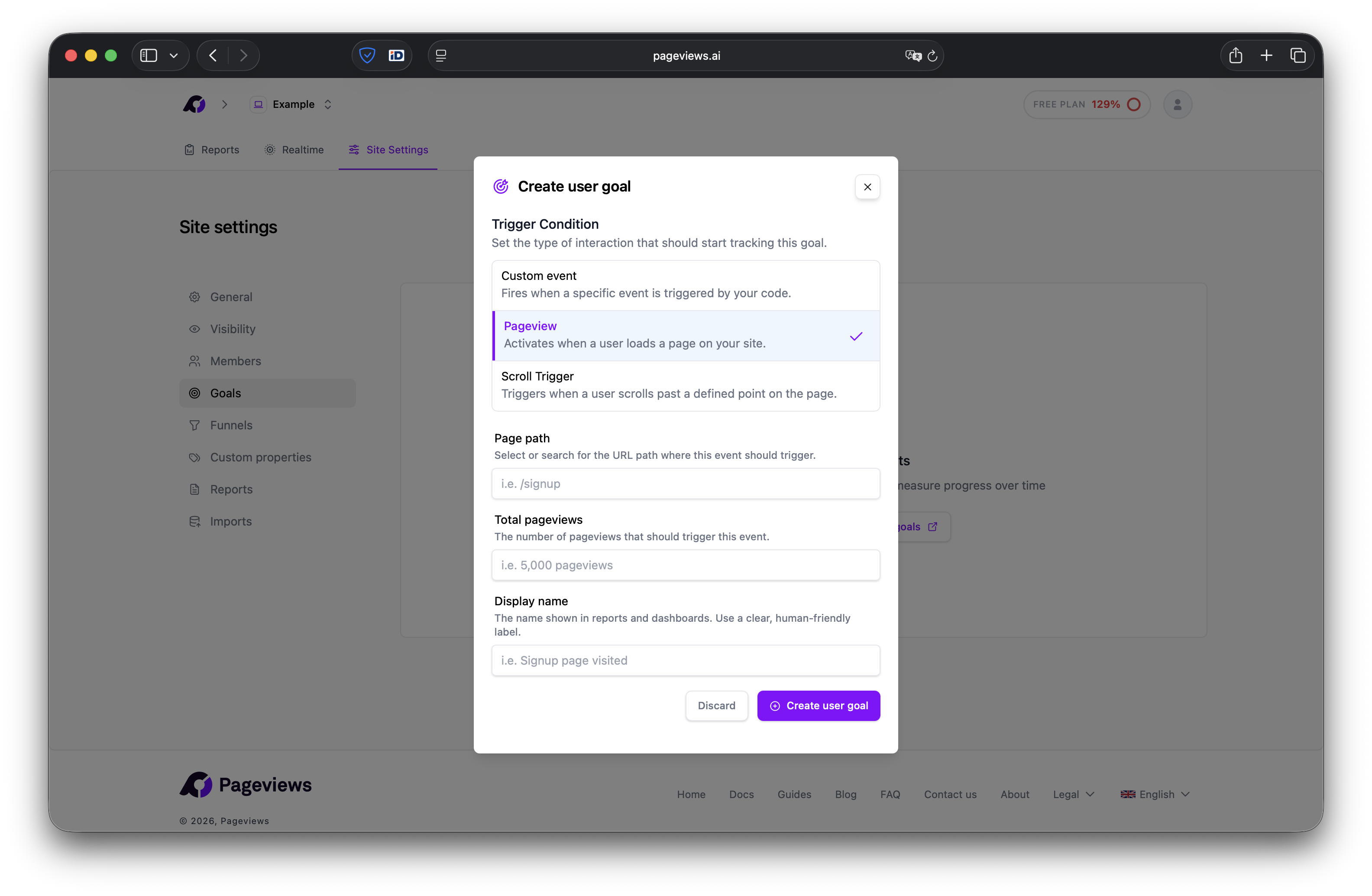
Create a pageview goal
- Go to your Site Settings → Goals page.
- Click Add Goal.
- Select Pageview as the goal type.
- Enter the page path you want to track (e.g.,
/thank-you). - Give your goal a descriptive name (e.g., "Completed Sign-up").
- Click Save.
How matching works
Pageview goals match on the path portion of the URL. For example, if you set the path to /thank-you, it will match:
https://example.com/thank-youhttps://example.com/thank-you?ref=email
By default, the match is exact — /thank-you will not match /thank-you/step-2.
Wildcard matching
You can use a * wildcard at the end of a path to match any suffix. For example, /blog/* will match /blog/my-post, /blog/another-post, and any other page under /blog/.
This is useful when you want to track conversions across an entire section of your site, like all blog posts or all product pages.
View goal conversions
Once a pageview goal is set up, you'll see a Goal Conversions section on your dashboard. It shows:
- Total conversions — The number of times the goal page was viewed.
- Unique conversions — The number of unique visitors who viewed the goal page.
Conversion rate — The percentage of total visitors who completed the goal.
Tips
- Use pageview goals for destination-based conversions like confirmation pages.
- For tracking button clicks or interactive elements, use Custom event goals instead.
- Combine goals with Funnel analysis to understand the full conversion path.