Custom event goals
Custom event goals let you track specific user actions beyond pageviews — like button clicks, form submissions, sign-ups, or purchases. They're triggered by calling a JavaScript function from your site's code.
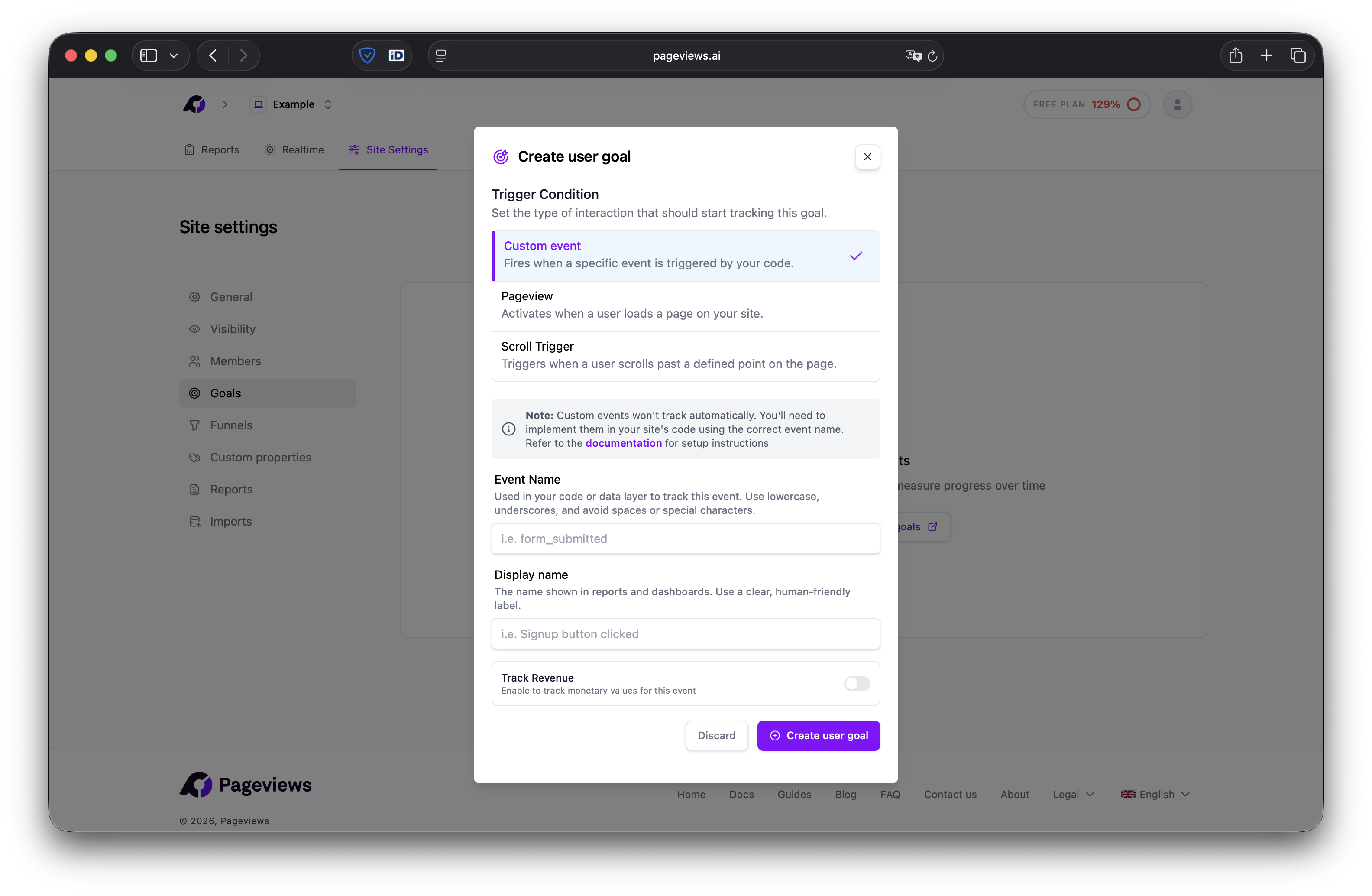
Create a custom event goal
- Go to your Site Settings → Goals page.
- Click Add Goal.
- Select Custom as the goal type.
- Enter the event name exactly as you'll send it from your code (e.g.,
Sign Up). - Give your goal a descriptive name.
- Click Save.
Send events from your website
Use the global pageviews function to send events. The event name must match what you entered when creating the goal.
Basic event
pageviews('track', 'Sign Up');Event with custom properties
pageviews('track', 'Sign Up', { props: { plan: 'pro', source: 'landing-page' } });Example: track a button click
<button onclick="pageviews('track', 'Download Brochure')">Download</button>Example: track a form submission
document.querySelector('#signup-form').addEventListener('submit', function() {
    pageviews('track', 'Form Submitted', { props: { form: 'signup' } });
});
Event properties
Custom properties let you attach additional context to your events. They appear as breakdowns in your goal conversion report, so you can see which property values drive the most conversions.
For example, if you track a Purchase event with a plan property, you'll be able to see how many purchases came from each plan type.
See the Custom properties article for more details on setting up and viewing property breakdowns.
Tips
- Event names are case-sensitive.
Sign Upandsign upare treated as different events. - Keep event names descriptive and consistent across your site.
- You can create as many custom event goals as your plan allows.