Delete your site data
If you no longer need a site in Pageviews, you can permanently delete it along with all its analytics data.
How to delete a site
- Go to Site Settings → General.
- Scroll to the bottom of the page.
- Click Delete Site.
- Confirm the deletion by typing the site name or clicking the confirmation button.
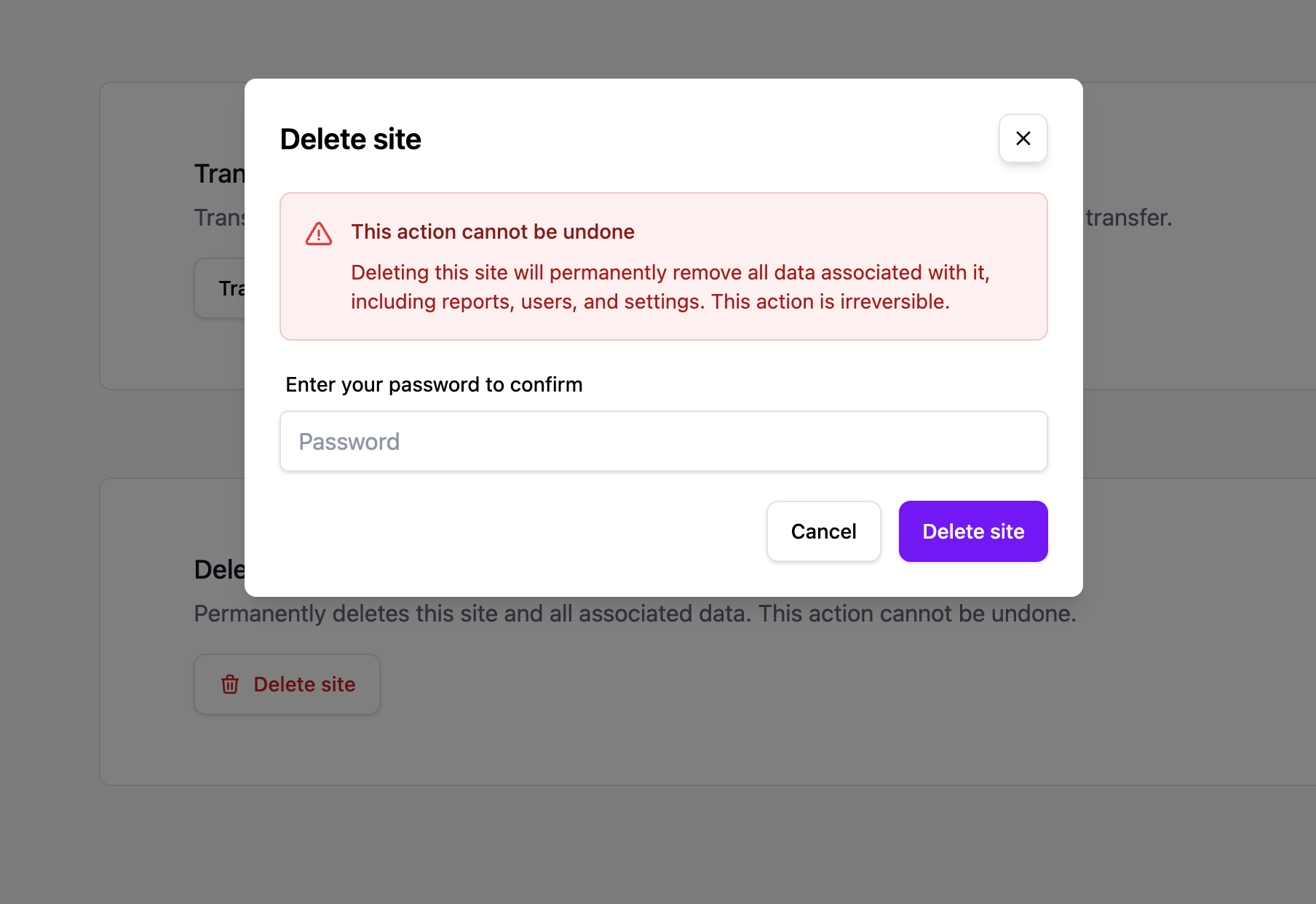
What gets deleted
Deleting a site permanently removes:
- All analytics data (pageviews, visitors, sources, etc.).
- All goals and funnels.
- All custom properties.
- All shared links.
- All team member associations.
- All email report and spike alert configurations.
Important
- This action is permanent and cannot be undone. There is no way to recover deleted data.
- Only the site Owner can delete a site.
- If you just want to stop tracking, you can remove the tracking snippet from your website instead — your historical data will remain accessible in the dashboard.
- Remember to remove the tracking snippet from your website after deleting the site to avoid unnecessary requests.